
Guide
Verify a Rust contract
On this page
Build reproducible WASM from a public commit, deploy it, then ask SourceScan to verify it through NearBlocks. Try it on testnet first. Mainnet works the same way with a mainnet account and NearBlocks mainnet.
If the contract is already deployed with reproducible build metadata, skip building and deploying: check its metadata and go to request verification in NearBlocks. That needs no account, key or Docker.
To build and deploy, you need:
- a public Git repository you can push to
- a NEAR account you control, with its usual signer
- Docker that can run
linux/amd64images, which ARM hosts such as Apple silicon run through emulation
Set up the tools
Install Rust, Git, Docker Engine, cargo-near and NEAR CLI. On Linux, see Docker's post-install steps if your user cannot reach the daemon. Check that docker info, cargo near --version and near --version all work.
To create a testnet account, use the account creation flow in NEAR CLI and make sure the account holds enough testnet NEAR for deployment and storage.
For a new contract, run cargo near new and keep the reproducible build settings it generates. For an existing deployment, start from the commit, lockfile and builder recorded in its metadata. Updating dependencies first changes the code you are trying to verify.
Pin the source and build
Point package.repository at your public repository's HTTPS URL. cargo-near records it with the pushed commit as git+https://…?rev=COMMIT, the snapshot form the verifier can rebuild from. The example below is from the cargo-near 0.23.0 project template, the latest release on 23 November 2026. To choose a different image, read choose a builder image first.
[package]
# Keep your existing name, version, edition and other package fields.
repository = "https://github.com/YOUR-ORG/YOUR-CONTRACT"

[package.metadata.near.reproducible_build]
image = "sourcescan/cargo-near:0.22.0-rust-1.99.1"
image_digest = "sha256:c9655eaf7436b90c87ea8b25739f91063032c5c30ba24cfeafe72c142943b5bb"
passed_env = []
container_build_command = ["cargo", "near", "build", "non-reproducible-wasm", "--locked"]
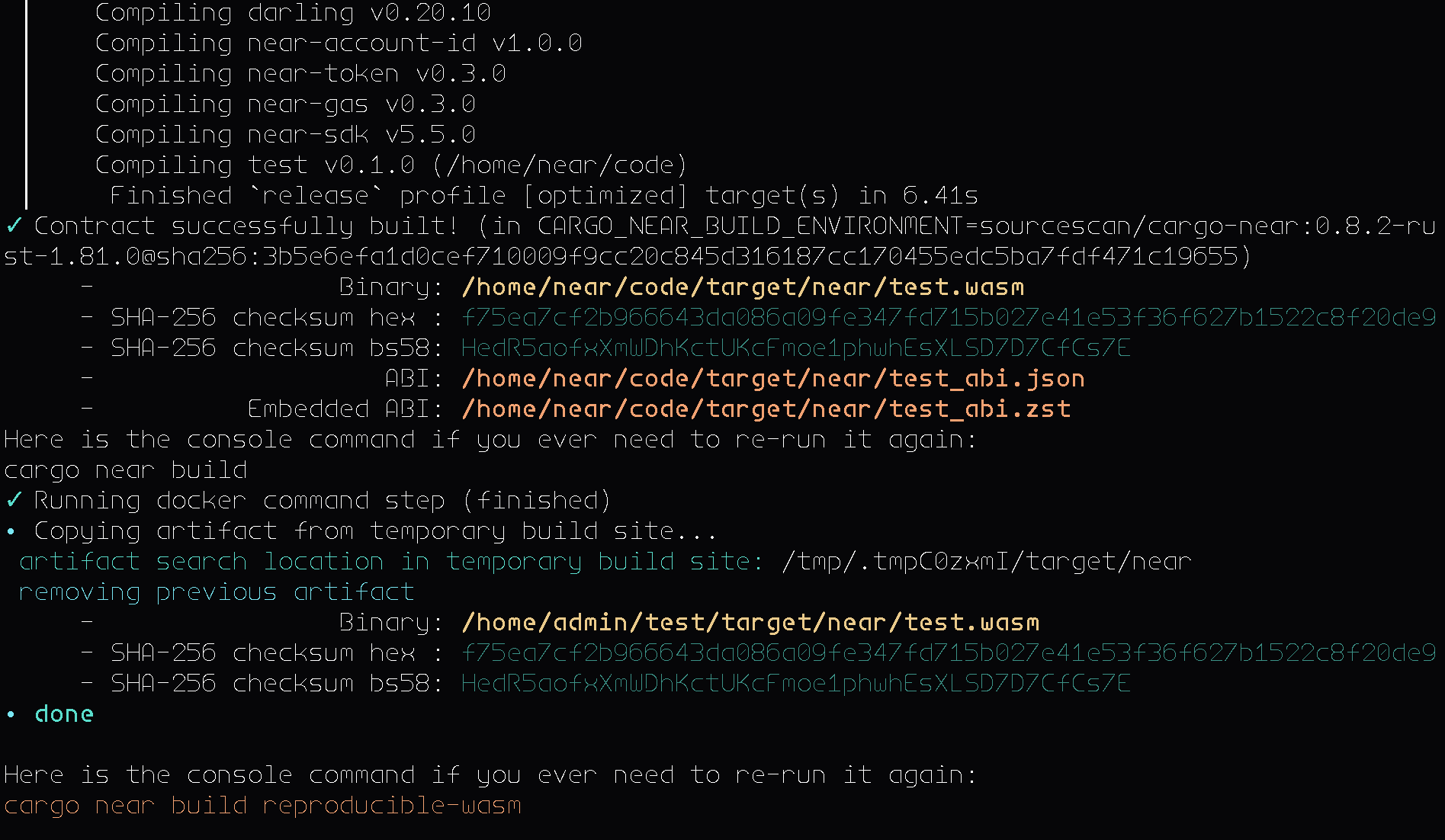
Commit Cargo.toml, Cargo.lock, your source and every other build input, then push that exact commit. Build locally to check it works and to find the WASM.
git status --short
cargo near build reproducible-wasm
The reproducible build runs against the committed source in the pinned container and ignores uncommitted changes. It needs Cargo.lock committed for its --locked build. cargo-near README
For a contract in a workspace, select the crate with --manifest-path path/to/Cargo.toml.
Reproducible builds have no --features flag. Put Cargo features in container_build_command, or define a named variant. The metadata records the command that was used, so the verifier rebuilds with the same features. This example assumes your crate defines a testnet feature in [features]. cargo-near variants
[package.metadata.near.reproducible_build.variant.testnet]
container_build_command = ["cargo", "near", "build", "non-reproducible-wasm", "--locked", "--features", "testnet"]
Build a variant by name, then deploy it with the same --variant, as shown in the next section.
cargo near build reproducible-wasm --variant testnet
Deploy the reproducible WASM
Run one of these in your own terminal, matching the build you checked. For the default build:
cargo near deploy build-reproducible-wasm
Or, for a named variant:
cargo near deploy build-reproducible-wasm --variant testnet
Select the account, the initialization option your contract needs and the network, then review and sign with your usual signer.
Deployment requires a clean working tree, with no modified tracked files, staged changes or untracked content, and a commit already pushed to package.repository. cargo-near README
You can also deploy the exact WASM from cargo near build reproducible-wasm with NEAR CLI. Save the account ID, deployment transaction and block height.
Request verification in NearBlocks
- Open
https://testnet.nearblocks.io/address/ACCOUNT_ID/contract/code. - Select Verify and Publish to open
/verify-contract?account=ACCOUNT_ID. If NearBlocks already shows Contract Source Code Verified, it found a record for the deployed hash and you do not need to submit again. If no banner appears, the contract may not expose NEP-330 metadata, or the metadata call may have failed. Read the metadata with RPC and see troubleshooting. - Check the network, account, standard and build environment, then select Verify Contract. The button stays disabled if the metadata lacks
build_environmentorsource_code_snapshot. NearBlocks sends the account ID and network to SourceScan. Nothing is signed and no key is requested. - Wait for the answer. SourceScan rebuilds the contract before it replies, which can take several minutes. A match returns Contract verified successfully; any other message explains what failed. NearBlocks shows Verification submitted successfully only if SourceScan sends no message.
- Reload Contract Code. A match shows Contract Source Code Verified with the archived source files. Then read the result.
SourceScan reads the metadata and deployed code at the latest final block, rebuilds the code the metadata names, compares the two, archives the source on IPFS and writes a record to the registry. See how verification works.
The verify page reads only the account parameter. Older links using accountId and selectedVerifier open a page that asks for an account in the address.
Labels were checked on NearBlocks testnet and in NearBlocks source on 23 November 2026. This guide did not submit a new verification request.